
When a Test Fails
A test is marked as failed when any step does not complete successfully. This includes:- Element not found - The target element (button, input, link) couldn’t be located on the page
- Action failed - A click, type, or other interaction didn’t produce the expected result
- Assertion failed - A validation check didn’t pass (e.g., expected text wasn’t present)
Failure Data
Each test run captures detailed information to help you understand what went wrong:Screenshots
- Screenshot taken at each step
- Final screenshot showing the state when failure occurred
- Visual comparison to identify UI changes
Logs
- Console logs from the browser
- Network request logs
Step Details
- Which step failed and why
- Time taken for each step
Session Recording
- Full video replay of the test execution
- See exactly what happened leading up to the failure
Viewing Failure Information
- Go to your Tests dashboard
- Click on a failed test run
- Review the step-by-step breakdown
- Click on the failed step to see detailed logs and screenshots
Suggested Fixes
When a test fails because your product has changed — for example, a UI was refreshed, page elements were moved or renamed, or underlying data became stale — Decipher automatically self-heals simple step failures without any action needed from you. For more involved changes, Decipher suggests specific fixes to bring the test back in sync with the current state of your application. To view suggested fixes, expand the Suggested Fixes section on a failed test run.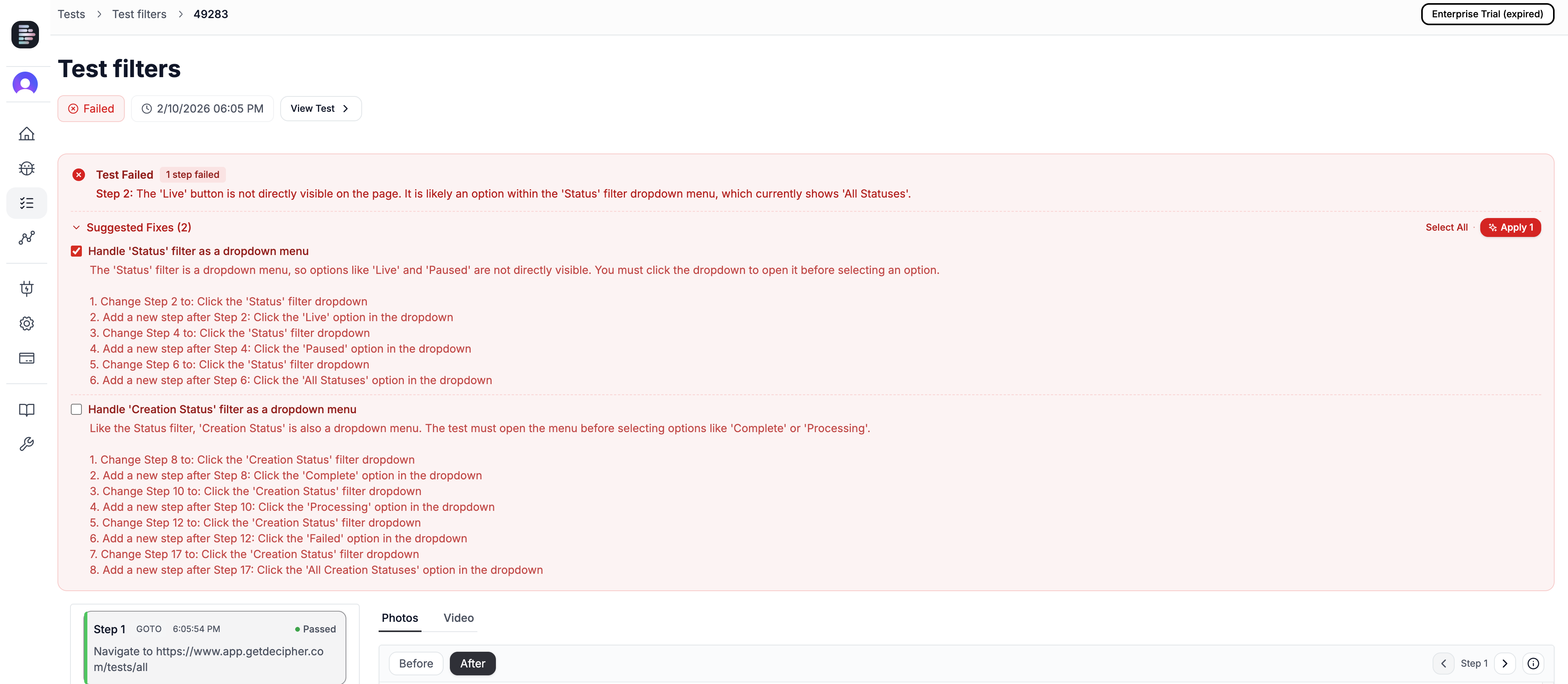
Need help? Contact our support team.