
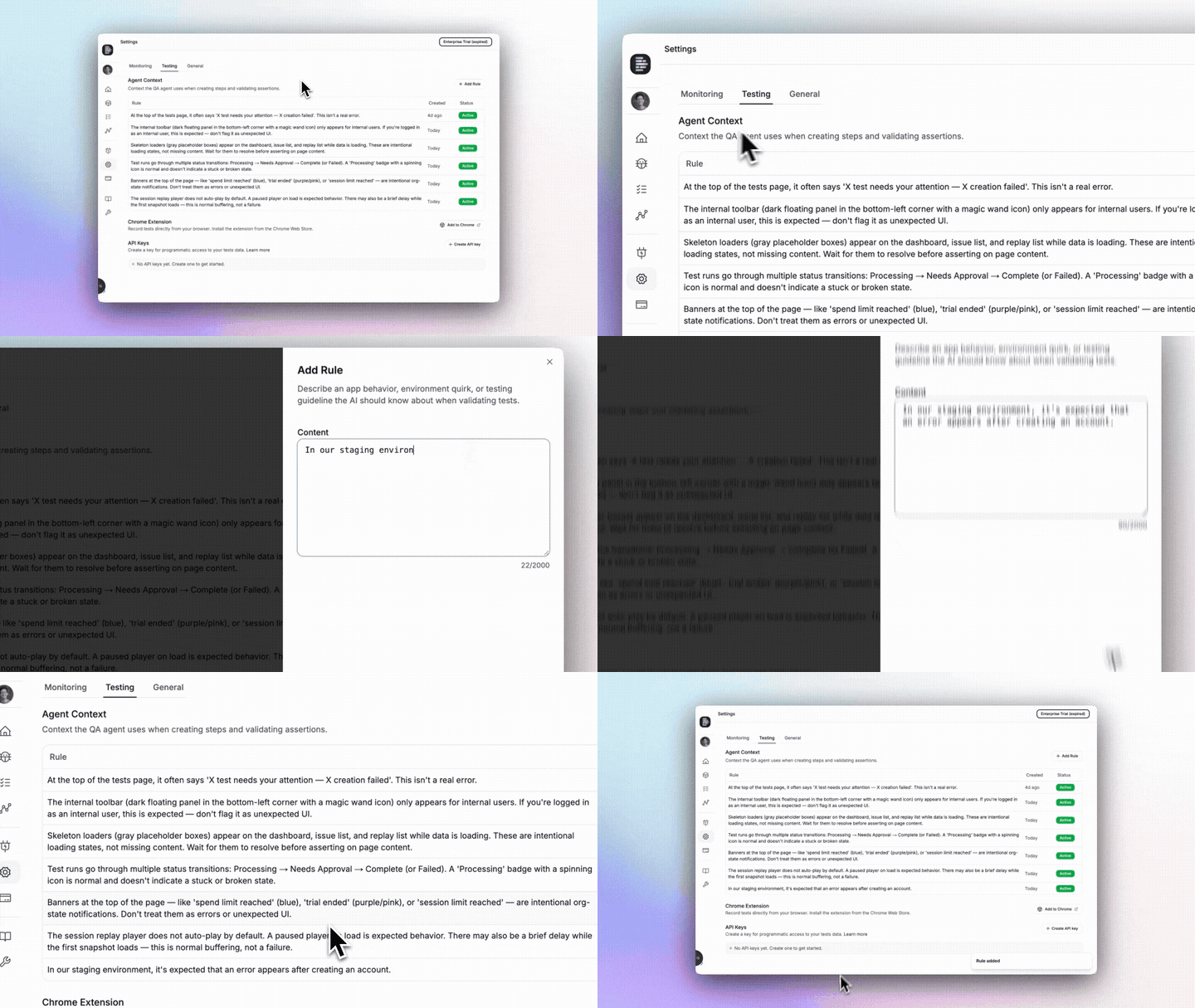
Setup
Go to your project Settings > Testing tab. In the Agent Context section, click Add Rule and describe the behavior in plain language. Rules take effect immediately.How It Works
Active rules are injected into the agent’s context during step validation and assertion validation. When the agent evaluates whether a step succeeded or an assertion passed, it checks its observations against your rules. Behaviors you’ve marked as expected are filtered out. Rules are interpreted with full reasoning — you don’t need exact string matches or CSS selectors. “The debug toolbar at the bottom of the screen” is enough.Examples
Best Practices
- Be specific — “Ignore the red banner on the checkout page” over “ignore red banners.”
- Keep rules current — Remove rules when the behavior is fixed. Stale rules can mask real bugs.
Managing Rules
Click any rule to view, edit, or toggle it. Each rule shows its creation date and current status.- Toggle active/inactive — Only active rules are used during test runs.
- Edit — Changes take effect on the next run.
- Delete — Permanently remove a rule.
Need help? Contact our support team.